Fix High CPU Usage When Idle in Windows 11
Founder & Lead Technology Analyst at Techny Tech · IEEE Senior Member, Certified Information Systems Security Professional (CISSP) · 13+ years in embedded systems benchmarking, machine learning hardware acceleration, and consumer electronics
Your Windows 11 PC shouldn’t feel like it’s running a marathon when you’re just checking email. High CPU usage when idle in Windows 11 is a common frustration, often caused by background processes, driver issues, or misconfigured settings. Left unchecked, it drains battery life, overheats your system, and slows everything down.
Normal idle CPU usage should hover below 5%. If yours is consistently above 10-20%, something’s off, and the fixes are usually simpler than you think.
high CPU usage when idle in Windows 11
This happens when background processes consume excessive CPU resources. Common causes include Windows Defender scans, System Interrupts, or outdated drivers. Task Manager can help identify the culprit.
Fixes often involve disabling unnecessary services or updating drivers.
The 5 Most Common Culprits (and How to Spot Them)
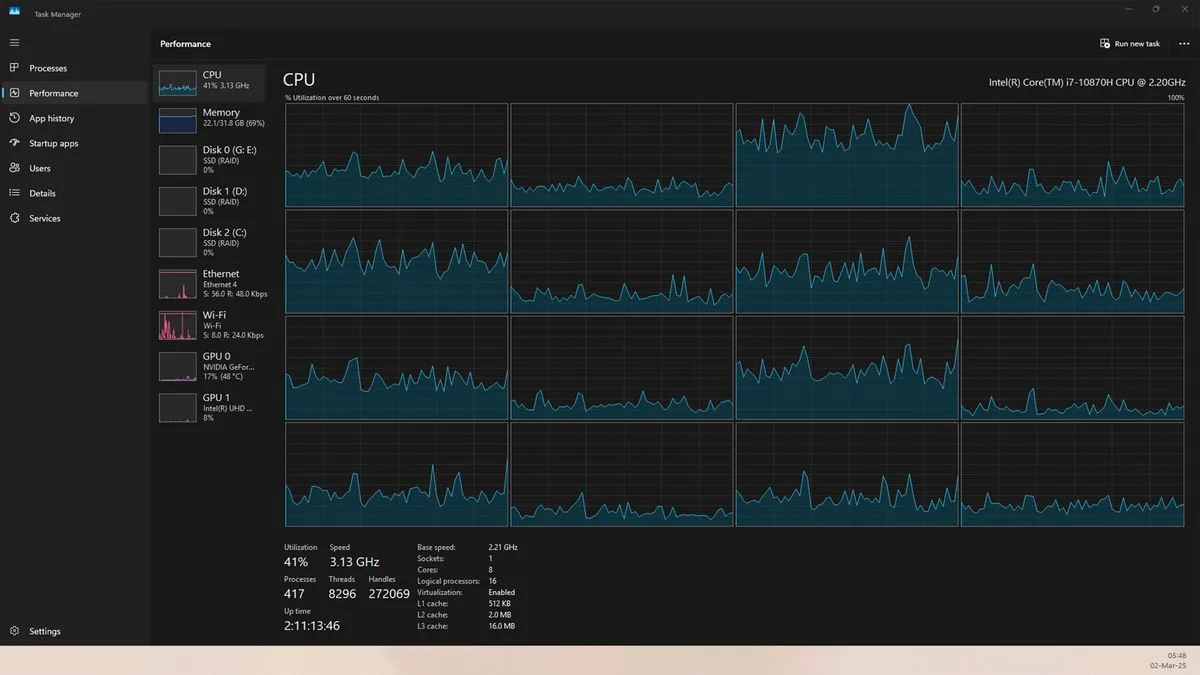
Image source: Bing (Web (fair-use with source credit))
First, open Task Manager (Ctrl+Shift+Esc) and sort by CPU usage. If Antimalware Service Executable (MsMpEng.exe) is at the top, Windows Defender is likely the issue. This process runs real-time scans, which can spike CPU usage during updates or full system checks.
Next, look for System Interrupts. This isn’t a process but a sign of hardware or driver conflicts. If it’s consistently high, outdated or corrupt drivers are often to blame.
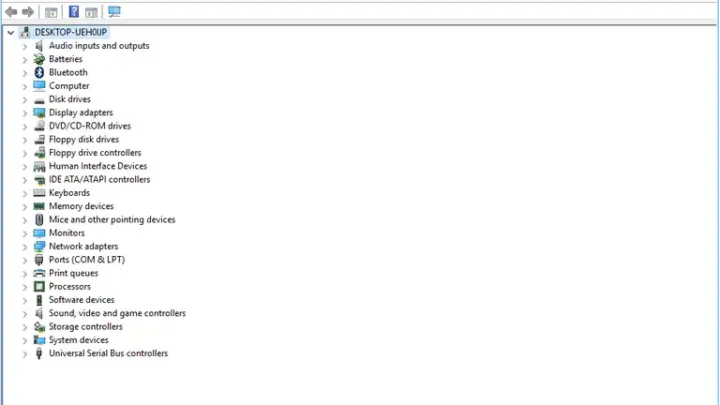
Check Device Manager for any devices with warning icons.
Runtime Broker is another frequent offender. It manages app permissions and can go rogue if an app is misbehaving. If it’s using too much CPU, try closing background apps or resetting the app in question.
Windows Search Indexer can also cause high CPU usage, especially if it’s indexing a large number of files. You’ll notice this if the process SearchIndexer.exe appears at the top of Task Manager. Disabling indexing for certain folders can help.
Finally, Superfetch (SysMain) preloads frequently used apps into memory. While this can speed up performance, it can also cause high disk and CPU usage. If you see SysMain using excessive resources, disabling it may help.
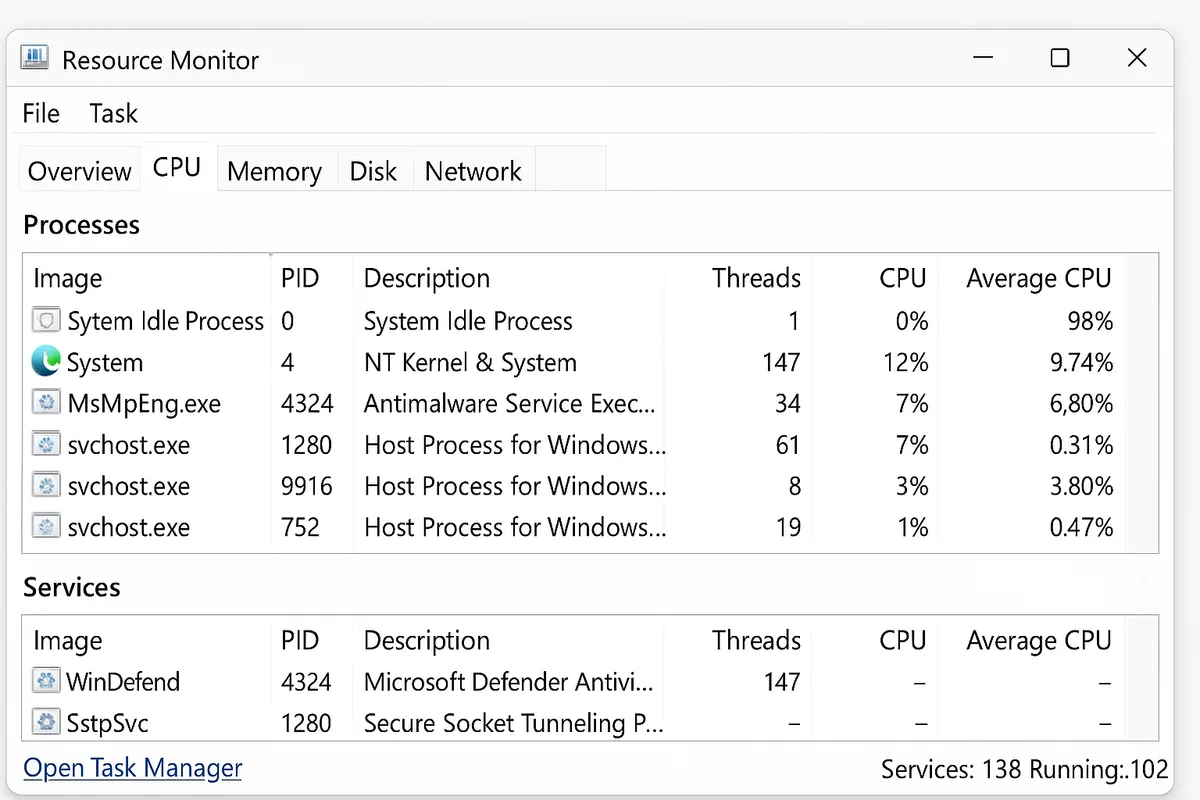
Image source: Bing (Web (fair-use with source credit))
Step-by-Step Fixes for Each Cause
If Windows Defender is the culprit, start by excluding trusted folders from scans. Open Windows Security, go to Virus & threat protection, then Manage settings under Exclusions. Add folders that don’t need scanning, like game directories.
For System Interrupts, update all drivers. Open Device Manager, right-click each device, and select Update driver. Focus on chipset, network, and audio drivers first, as these are common triggers.
If updates don’t help, try rolling back to a previous driver version.
To tame Runtime Broker, close unnecessary background apps. Press Ctrl+Shift+Esc, go to the Processes tab, and end tasks for apps you’re not using. If the issue persists, reset the problematic app via Settings > Apps > Installed apps.
If Windows Search Indexer is the problem, limit its scope. Open Settings > Privacy & security > Searching Windows and exclude folders you don’t need indexed. Alternatively, disable indexing entirely via Services.msc (stop the Windows Search service).
For Superfetch (SysMain), disable it via Services.msc. Find SysMain, right-click, select Properties, and set the startup type to Disabled. Note that this may slightly slow down app launches.
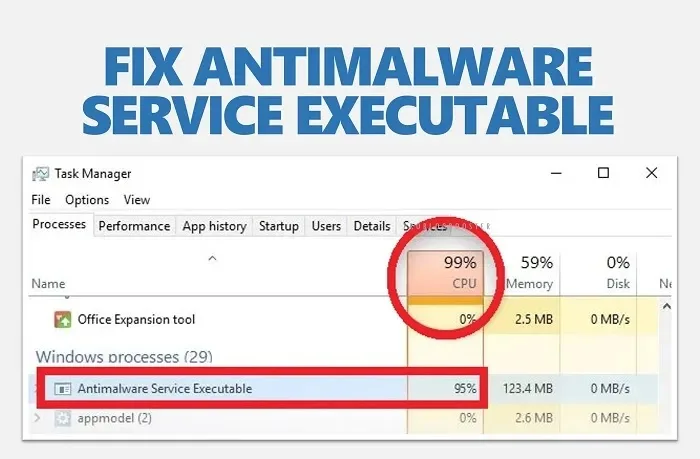
Image source: Bing (Web (fair-use with source credit))
Quick Wins: 3 Things to Try First
Check for Windows updates. Open Settings > Windows Update and install any pending updates. Microsoft frequently releases patches that fix CPU-related bugs.
Disable startup programs. Open Task Manager, go to the Startup tab, and disable apps you don’t need launching at boot. This reduces background load and can lower idle CPU usage.
Switch to a balanced power plan. Open Control Panel > Power Options and select Balanced. High-performance plans can keep your CPU running at full tilt, even when idle.
When to Dig Deeper (Advanced Troubleshooting)
If the basics don’t work, check for malware. Run a full scan with Windows Defender or a trusted third-party tool like Malwarebytes. Some malware is designed to use your CPU for cryptomining or other tasks.
Monitor CPU temperatures. Use tools like HWMonitor or Core Temp to check if overheating is causing throttling or high usage. Dust buildup or failing fans can lead to thermal issues.
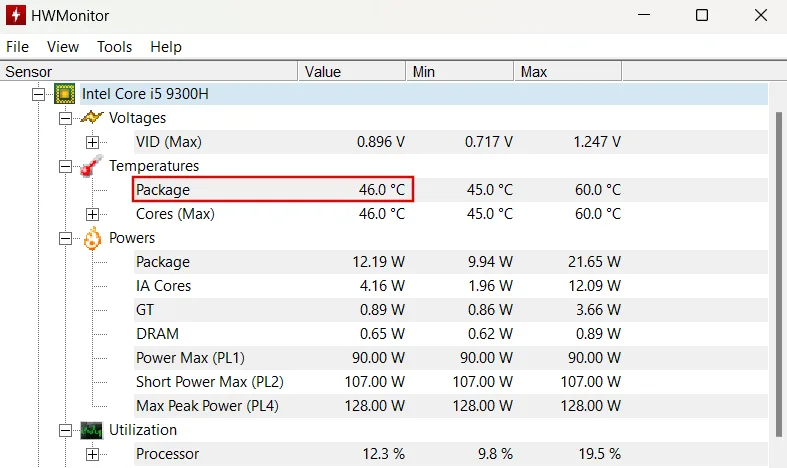
Image source: Bing (Web (fair-use with source credit))
Reset Windows power settings. Open Command Prompt as admin and run powercfg /restoredefaultschemes. This resets all power plans to their default values, which can resolve misconfigurations.
Check for BIOS/UEFI updates. Visit your motherboard or laptop manufacturer’s website and download the latest BIOS version. Flashing the BIOS can fix compatibility issues causing high CPU usage.
If all else fails, perform a clean boot. This starts Windows with minimal drivers and services, helping you identify if a third-party app is the culprit. Instructions are available on Microsoft’s support site.
How to Prevent It from Happening Again
Regular maintenance keeps CPU usage in check. Schedule monthly driver updates via Device Manager or manufacturer tools like Dell Update or HP Support Assistant. Outdated drivers are a top cause of System Interrupts spikes.
Adjust Windows Defender’s scan frequency. Open Virus & threat protection and set Scan options to Quick scan instead of Full scan. Exclude large, static folders like game libraries or media drives from real-time protection.
Limit startup programs to essentials only. Use Task Manager’s Startup tab to disable non-critical apps. Fewer background processes mean lower idle CPU usage and faster boot times.
Enable Game Mode if you’re a gamer. This prioritizes system resources for active apps and reduces background activity. Find it under Settings > Gaming > Game Mode.
Monitor CPU temperatures regularly. Use free tools like HWMonitor to catch overheating early. Dust your PC’s vents every 3-6 months, especially for laptops.
Frequently Asked Questions
Why does my CPU usage spike to 100% when idle?
This usually means a background process is stuck in a loop. Check Task Manager for Antimalware Service Executable, System Interrupts, or Runtime Broker. Updating drivers or disabling problematic services often fixes it.
Is 20% CPU usage at idle normal?
No. Healthy idle usage should stay below 5%. If it’s consistently at 20%, investigate background apps, malware, or driver conflicts.
Use Resource Monitor for deeper insights.
Can high CPU usage damage my laptop?
Yes, over time. Sustained high usage generates heat, which can shorten your CPU’s lifespan. If temperatures exceed 80°C, address cooling or usage issues immediately.
How do I stop Windows Defender from using so much CPU?
Exclude trusted folders from scans or switch to a third-party antivirus. Alternatively, adjust scan schedules in Virus & threat protection settings. Disabling real-time protection isn’t recommended.
Does disabling Superfetch improve performance?
It can reduce disk and CPU usage, but may slow down app launches. Test it by disabling SysMain in Services.msc. Re-enable it if you notice slower performance.
What’s the best power plan for low CPU usage?
Use Balanced for most users. Power Saver reduces performance but lowers CPU usage, while High Performance keeps CPU active. Adjust via Control Panel > Power Options.

Similar Posts