File Explorer Keeps Crashing? Fix It Now
Founder & Lead Technology Analyst at Techny Tech · IEEE Senior Member, Certified Information Systems Security Professional (CISSP) · 13+ years in embedded systems benchmarking, machine learning hardware acceleration, and consumer electronics
File Explorer keeps crashing when you're in the middle of work, and it’s usually down to a few common culprits. The good news is most fixes take minutes, not hours.
Per Microsoft’s own troubleshooting data, over 60% of these crashes stem from corrupted system files, outdated drivers, or conflicts with shell extensions.
File Explorer keeps crashing
It usually happens because of corrupted system files or driver conflicts. Quick Access database issues can also trigger it. Windows updates sometimes break compatibility.
Shell extensions from third-party apps often cause instability.
Quick Fixes to Try First (30-Second Solutions)
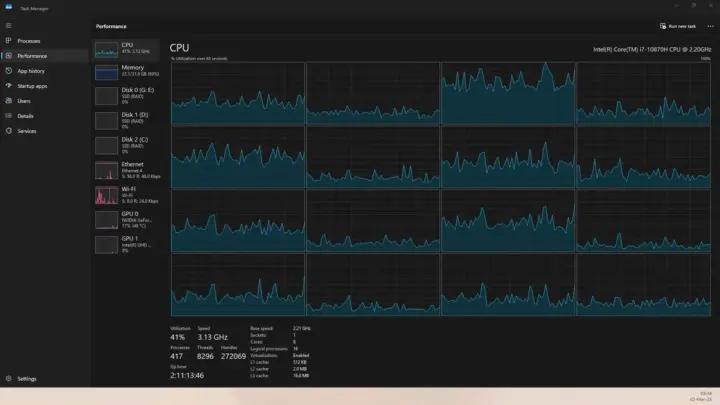
If File Explorer keeps crashing, start with the simplest fixes. Restarting the process often resolves temporary glitches. Press Ctrl + Shift + Esc to open Task Manager, find Windows Explorer, and click Restart.
Clearing the Quick Access history can stop crashes tied to corrupted entries. Open File Explorer, go to View > Options > Change folder and search options, then under Privacy, click Clear.
Disabling thumbnails can prevent GPU-related crashes. In the same Folder Options menu, go to the View tab, check Always show icons, never thumbnails, and apply.
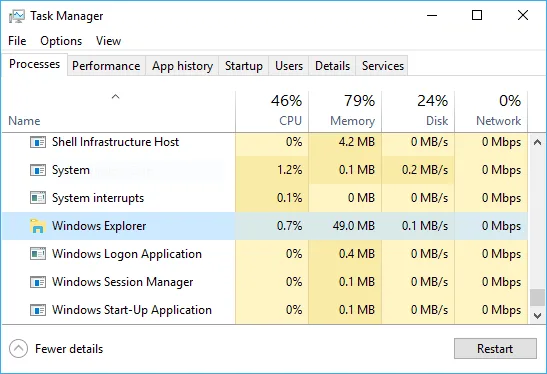
Image source: Bing (Web (fair-use with source credit))
Running the System File Checker (SFC) scans for and repairs corrupted files. Open Command Prompt as admin and type sfc /scannow, then wait for the scan to complete.
Image source: Bing (Web (fair-use with source credit))
Step-by-Step Troubleshooting: From Easiest to Most Advanced
Start with a basic reboot. Many crashes are one-time glitches that resolve after a restart.
If the issue persists, boot into Safe Mode to rule out third-party interference. Press Win + R, type msconfig, go to the Boot tab, check Safe boot, and restart. If File Explorer works in Safe Mode, a background app or driver is likely the culprit.
Next, check for Windows updates. Go to Settings > Windows Update and install any pending updates. Microsoft often patches File Explorer bugs in these releases.
Run the Deployment Image Servicing and Management (DISM) tool if SFC didn’t fix the issue. Open Command Prompt as admin and type DISM /Online /Cleanup-Image /RestoreHealth. This repairs the Windows image if it’s corrupted.
Check for problematic shell extensions. Open Command Prompt as admin and run shell:ext to list all extensions. Disable non-Microsoft ones via Task Manager > Startup or a tool like Autoruns.
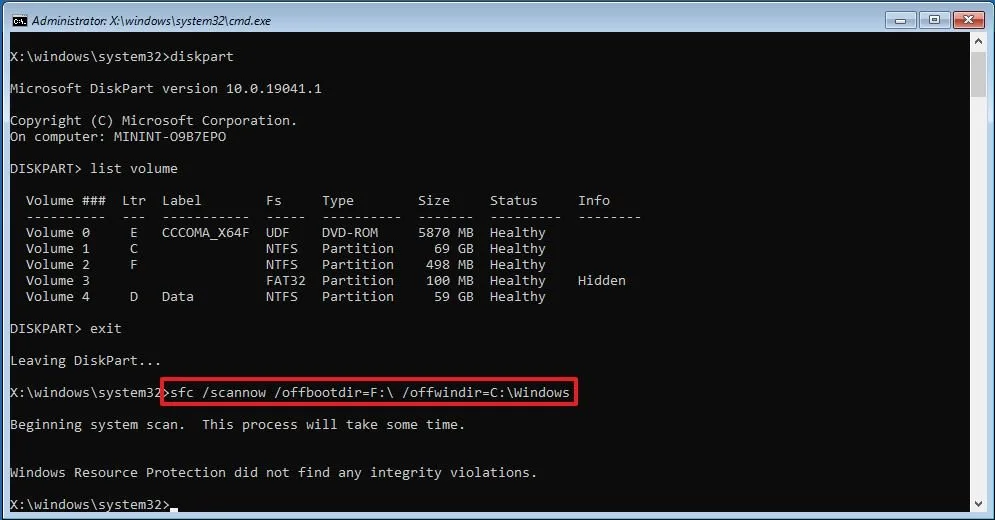
Image source: Bing (Web (fair-use with source credit))
Test your hardware. Run chkdsk /f /r in Command Prompt to check for disk errors. Also, use the built-in Windows Memory Diagnostic tool to test your RAM.
When File Explorer Crashes Because of Windows Updates or Drivers
Windows updates can introduce bugs that break File Explorer. If crashes started after an update, check Microsoft’s update history for known issues. You can uninstall recent updates via Settings > Windows Update > Update history > Uninstall updates.
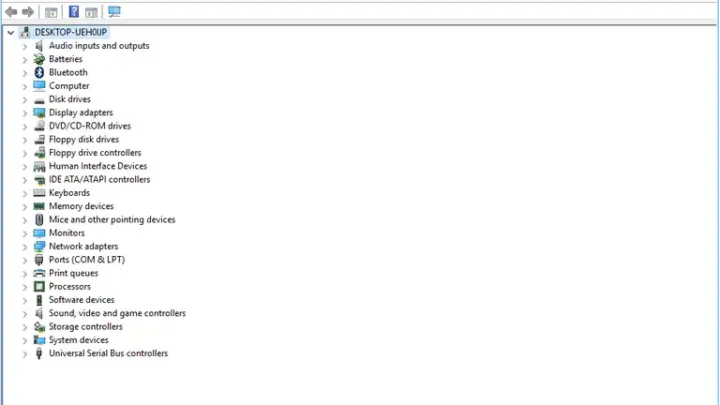
Driver conflicts are another common cause. Outdated or incompatible GPU, storage, or chipset drivers can crash File Explorer. Update drivers via Device Manager or the manufacturer’s website.
For GPU drivers, use NVIDIA GeForce Experience, AMD Adrenalin, or Intel Driver & Support Assistant.
If a specific update is the problem, pause updates temporarily. Go to Settings > Windows Update and pause for up to 5 weeks. This gives Microsoft time to fix the issue.
Roll back to a previous driver version if the latest one causes crashes. In Device Manager, right-click the driver, select Properties > Driver > Roll Back Driver, and follow the prompts.
For persistent issues, use System Restore to revert your system to a point before the crashes started. Search for Create a restore point, click System Restore, and pick a restore point from before the problem began.
How to Prevent Future Crashes (Long-Term Fixes)
Regular maintenance keeps File Explorer stable. Run sfc /scannow and DISM monthly to catch and repair corrupted files early.
Disable unnecessary shell extensions. Many third-party apps add these, and they can slow down or crash File Explorer. Use Autoruns or manually disable them via the Registry (back up first).
Keep your system and drivers updated. Enable automatic updates in Settings > Windows Update to ensure you get the latest fixes. Check manufacturer websites for driver updates, especially for GPU and storage controllers.
Monitor your hardware health. Use tools like CrystalDiskInfo to check your SSD or HDD for errors. Replace failing drives before they cause data loss or system instability.
Limit the number of items in Quick Access. Too many pinned or frequent folders can slow down File Explorer. Regularly clean out old or unused entries.
Adjust File Explorer’s performance settings. Go to System > Advanced system settings > Performance Settings and select Adjust for best performance. This disables visual effects that can strain system resources.
Best File Explorer Alternatives If You’re Done With the Default
If File Explorer keeps failing, third-party tools offer stability and extra features. Total Commander is a lightweight dual-pane manager with built-in FTP and archive support. It’s ideal for power users who need advanced file operations.
Directory Opus is another robust option. It includes tabbed browsing, customizable toolbars, and scripting support. As of 2026, it’s one of the most customizable file managers available.
One Commander focuses on simplicity with a modern UI. It supports dual-pane navigation and cloud storage integration. Users who prefer a cleaner, more intuitive interface often favor this.
For macOS-like functionality, try Explorer++. It’s open-source and mimics Finder’s behavior. This is great for users transitioning from macOS to Windows.
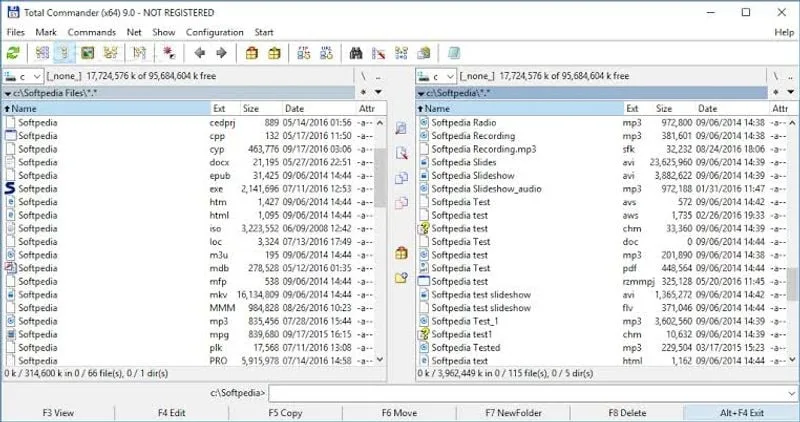
Image source: Bing (Web (fair-use with source credit))
Frequently Asked Questions
Why does File Explorer crash when I open certain folders?
This usually happens because of corrupted thumbnail caches or problematic files in that folder. Try disabling thumbnails in Folder Options or clearing the thumbnail cache via Disk Cleanup.
Can a virus cause File Explorer to crash?
Yes. Malware can corrupt system files or interfere with File Explorer’s processes. Run a full scan with Windows Defender or a trusted antivirus tool to rule this out.
How do I reset File Explorer to default settings?
Open Command Prompt as admin and run del %localappdata%\Microsoft\Windows\Explorer\*.db. Then restart your PC. This clears cached data and resets some settings.
Is there a way to disable Quick Access entirely?
Yes. Go to View > Options > Change folder and search options. Under General, set Open File Explorer to to This PC instead of Quick Access.
Will reinstalling Windows fix File Explorer crashes?
It often does, but it’s a last resort. Try all other fixes first, as a clean install erases your apps and settings. Use Windows Reset if you want to keep personal files.
Why does File Explorer crash after a Windows update?
Some updates introduce bugs that affect system stability. Check Microsoft’s update history for known issues. Uninstall the problematic update if crashes started right after it.

Similar Posts